
TikTok to MP4 — Turn Any TikTok Video Into an MP4, Without the Watermark
Turn any public TikTok video into a clean MP4 with no watermark — original or HD quality, right in your browser.
What “TikTok to MP4” Actually Means
Behind every TikTok post sits a video file, and MP4 is the one format that plays practically everywhere — phones, computers, TVs, editing software, messaging apps. “Converting TikTok to MP4” simply means taking the video attached to a post and saving it as that universal MP4 file on your own device, instead of leaving it locked inside the app.
MusicallyDown does this without re-encoding a single frame. It fetches the original file TikTok stores for the post, so the MP4 you receive keeps the creator’s upload quality, the untouched sound and the exact frame size — and because it comes from the source file rather than from TikTok’s save button, nothing has a watermark burned into it.
(However you arrived here — searching “musicaldown” or “musicallydown” — this is the converter both spellings point to.)
How to Convert a TikTok Video to MP4
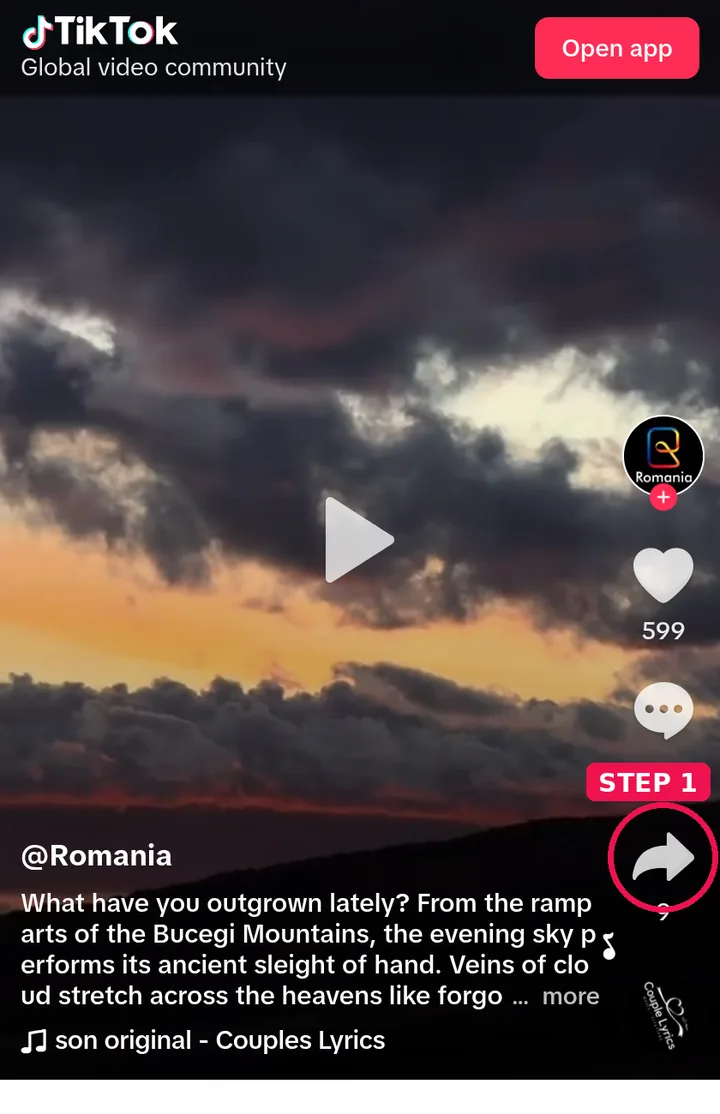
Step 1: In TikTok, open the video and tap Share → Copy Link. On a computer, copy the link from the address bar on tiktok.com.
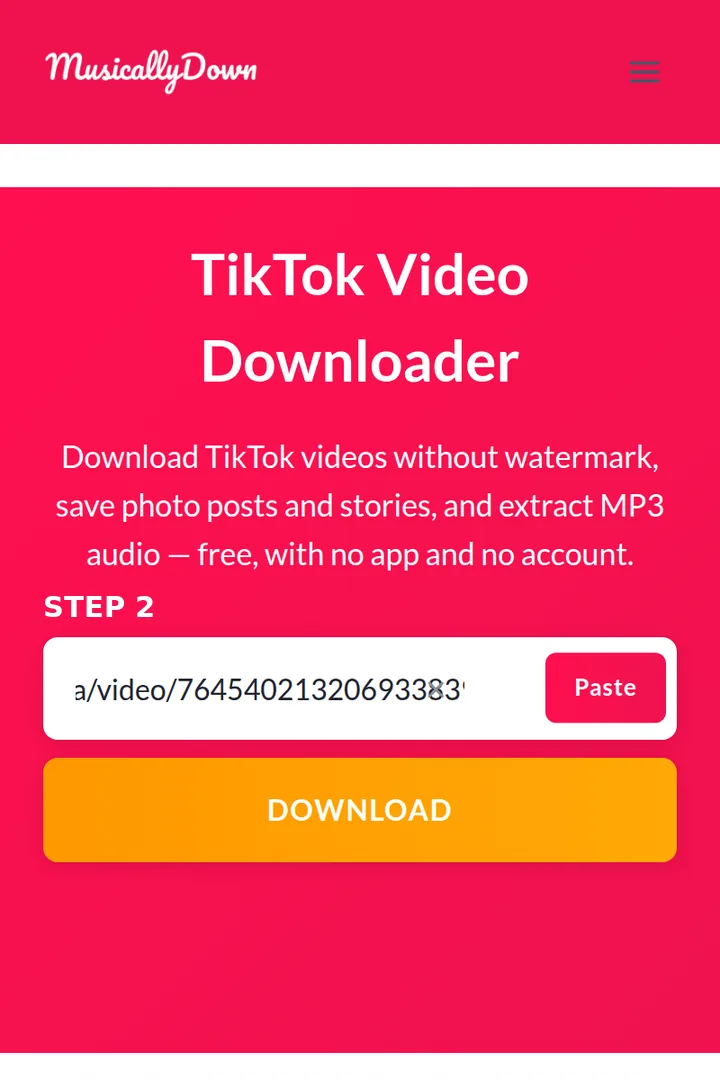
Step 2: Paste the link into the box above.
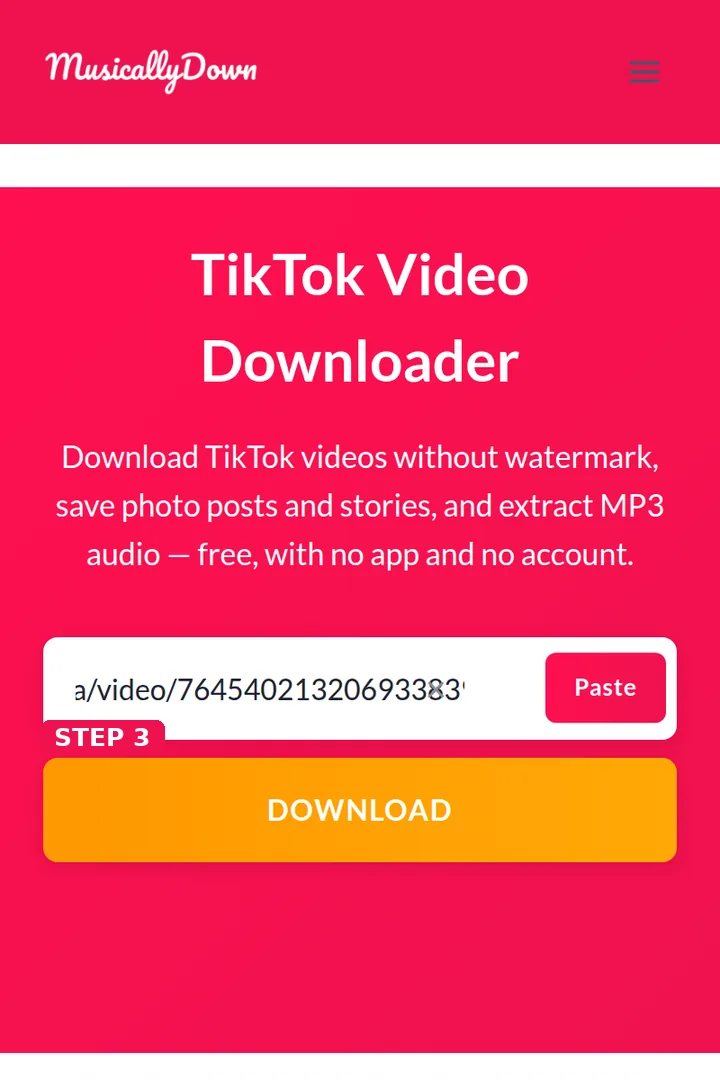
Step 3: Press Download and give the tool a moment to check the post.
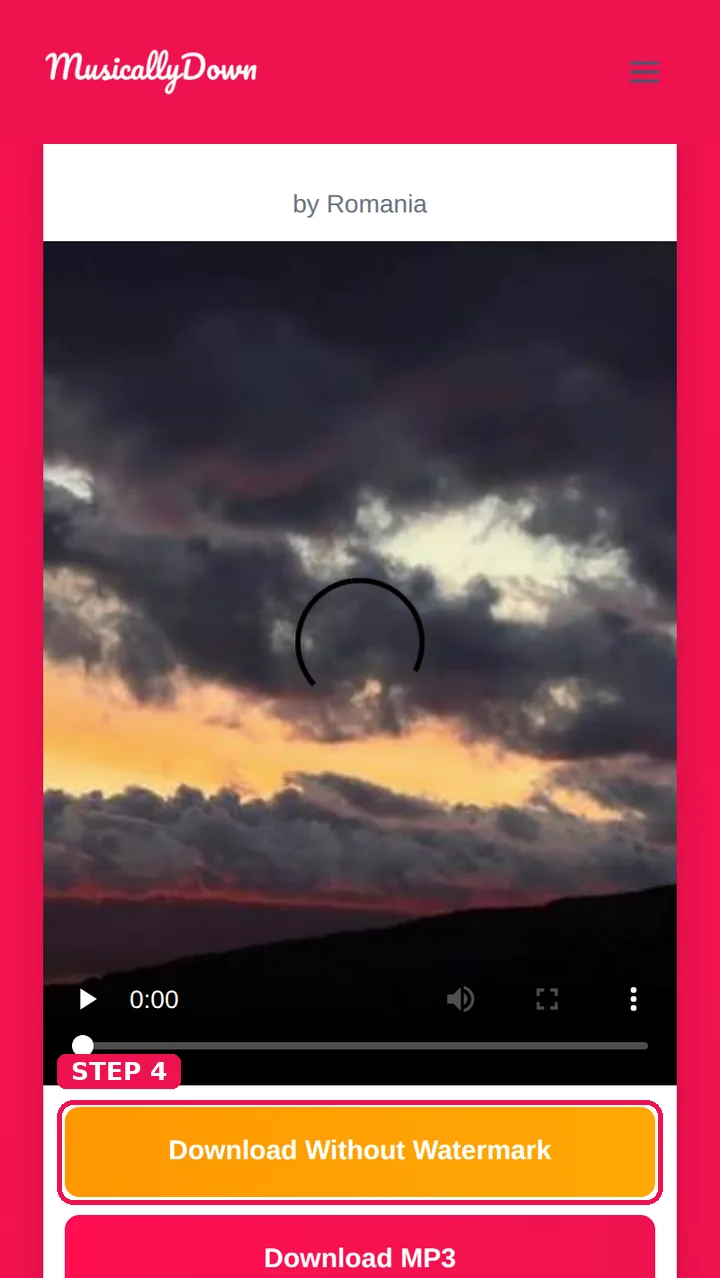
Step 4: Choose Download Without Watermark for the standard MP4, or Download HD when that option appears, and the file saves to your device.
That really is the whole process. The same steps also work for photo posts (you will be offered the images instead) and for audio — if you only want the sound, the TikTok to MP3 page is the shorter route.
Standard or HD — Which Should You Pick?
| Option | What you get | Best for |
|---|---|---|
| Standard MP4 | The video at its regular streaming quality | Quick saves, sharing, keeping the file size small |
| HD MP4 (when offered) | The highest resolution TikTok holds for that post | Big screens, editing, archiving |
HD only appears when the creator’s upload and TikTok’s processing actually produced an HD version. If the option is missing, it does not exist for that post — no converter can invent resolution that was never uploaded.
Saving MP4 Files on Your Device
- Android: the MP4 lands in Downloads and shows up in your gallery or file manager. Long-press in most file apps to move it anywhere you like.
- iPhone/iPad: Safari saves to the Files app. Open Files → Downloads, then use the share sheet to move the video into Photos if you want it in your camera roll.
- Windows/Mac: the file arrives in your browser’s Downloads folder, ready for any player or editor — MP4 needs no special software anywhere.
When a Conversion Fails
- Private or deleted post — private accounts cannot be fetched, and a deleted video no longer exists anywhere to convert.
- Incomplete link — a copied link that lost its tail is the most common cause. Copy it again from Share → Copy Link rather than from a chat message.
- Region-restricted post — a small number of posts are limited by the creator or by local rules and cannot be retrieved.
- Very fresh post — give a just-published video a few minutes, then try again.
- Stale result buttons — the download links on a results page are short-lived; if they stop responding, paste the link again for a fresh set.
See also: TikTok Video Saver — another tool in this set.
Frequently Asked Questions
Yes. The file is fetched rather than re-recorded or re-compressed, so what you save is what the creator uploaded — sound track included.
Because that post has no HD version. HD depends on the original upload and is not available for every video.
Yes. Audio is part of the MP4 file and is saved untouched.
A photo post is not a video, so MusicallyDown offers its photos as separate images instead (and its sound as MP3). If you specifically need a slideshow video, TikTok’s own save button produces one — with a watermark.
No. Private content stays inside TikTok for approved followers only.
Yes — free, unlimited, and with no sign-up. The site runs on advertising.
Almost certainly. MP4 (H.264) is the standard input for editors on every platform, from phone apps to Premiere and DaVinci Resolve. Remember that editing rights are separate from technical ability — get the creator’s permission for anything beyond personal use.
Some browsers show the source address while downloading. The saved file itself is an MP4; if your player hesitates, renaming the extension to .mp4 is safe for files fetched here.